Post 2 of 10 — Blender Add-on Development with Python. Need the first post?
In the last post, we created a Hello World add-on in Blender. One file, a handful of classes, and enough to understand the basic shape of how Blender add-ons work. But a Hello World add-on is not very useful. In this series we plan to create a Batch Render Manager that will allow us to queue multiple renders and to apply settings across multiple renders.
Unlike Hello World, the Batch Render Manager isn’t going to fit in one file. It’s going to have operators, panels, properties, a render queue runner, notification logic, and more. Trying to jam all of that into a single script is a recipe for a tangled mess that gets harder to work with every time you add something new.
This post is about setting up the structure that will carry us through the rest of the series — a proper Python package with multiple files, clean imports, and a registration system that scales. We’ll also dig into bl_info a bit more.
By the end of this post, we’ll have the skeleton of the Batch Render Manager in place. Nothing functional yet, but everything organized, installable, and ready to build on.
Single File vs. Package
When your add-on is a single .py file, Blender treats it pretty simply: enable the add-on, run the file, call register(). Done.
A package is a folder that Python treats as a module. The key ingredient is a file called __init__.py inside that folder. The __init__.py is not unique to Blender. It is part of Python itself and tells Python that a folder is a module. When Blender loads a package-style add-on, it imports the __init__.py just like it would a single-file add-on. Your bl_info, register(), and unregister() still live there.
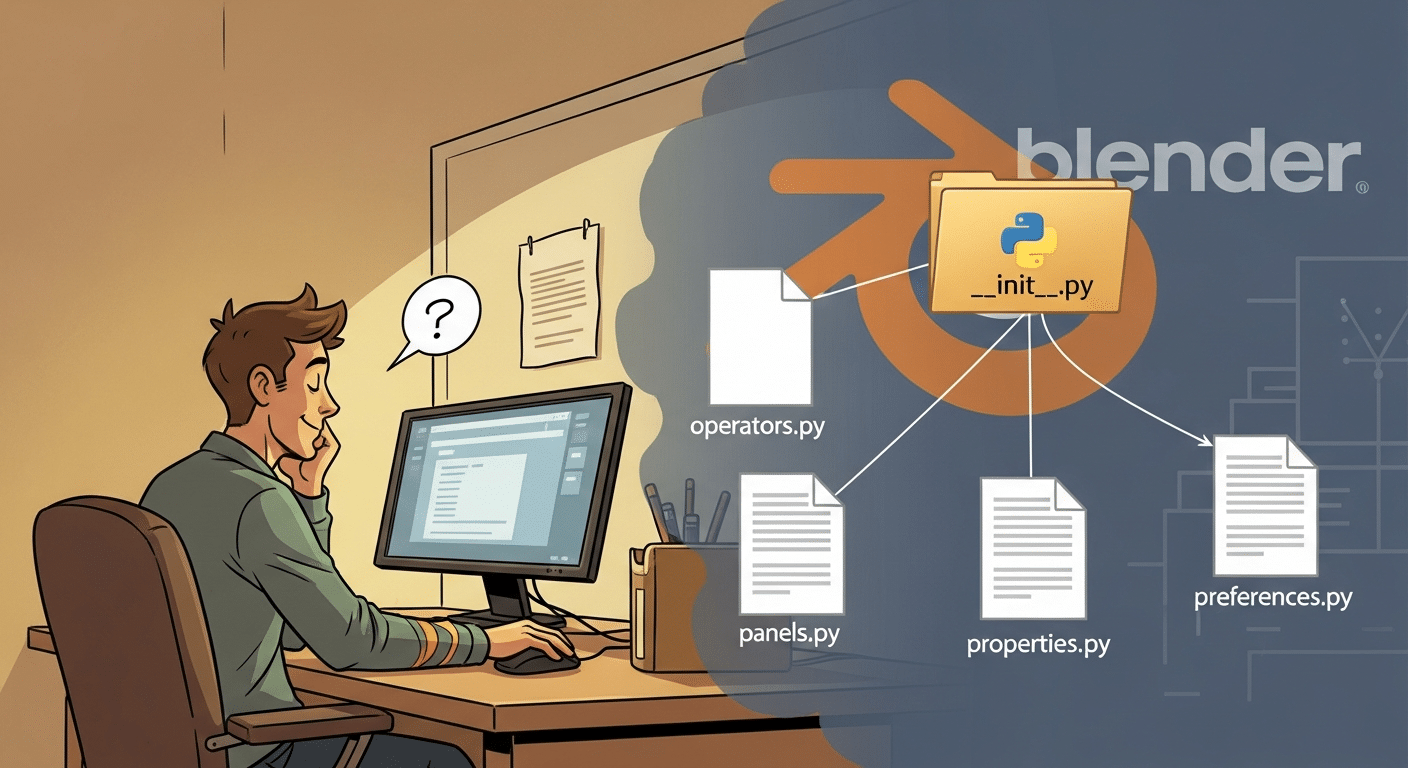
The difference is that everything else — operators, panels, properties — can now live in their own files, and __init__.py just imports and coordinates them.
Here’s the structure we’re going to set up today:
batch_render_manager/
├── __init__.py
├── operators.py
├── panels.py
├── properties.py
├── preferences.py
└── queue_runner.py
We won’t fill in most of these files yet. We will do that in future posts. But we’ll create them now so the structure is in place and everything registers cleanly.
bl_info — More Than Just a Label
You saw bl_info in Post 1. Let’s look at it more carefully, because a few of the fields matter more than they appear to.
Here’s what ours will look like:
bl_info = {
    "name": "Batch Render Manager",
    "author": "Your Name",
    "version": (0, 1, 0),
    "blender": (4, 0, 0),
    "location": "Properties > Render > Batch Render Manager",
    "description": "Queue multiple render jobs with per-job setting overrides and completion notifications.",
    "warning": "",
    "doc_url": "",
    "category": "Render",
}A few things worth calling out:
"version" is a tuple, not a string. (0, 1, 0) means major version 0, minor version 1, patch 0. Blender uses this to detect when an installed add-on has been updated.
"blender" is the minimum Blender version your add-on requires. If someone tries to install it on an older version, Blender will warn them. We’re targeting (4, 0, 0).
"location" is just a human-readable hint. It tells users where to find your add-on’s UI in Blender. It doesn’t actually control anything.
"warning" is useful if your add-on is experimental or has known issues. Blender will display this text in orange in the Preferences panel. Leave it as an empty string when you’re in good shape.
"category" controls which section your add-on appears under in Preferences. "Render" is the right home for us.
Building the Package
Let’s create the folder and files. If you’re using VS Code with the Blender Development extension, you can work directly in your Blender add-ons directory, or in a separate project folder that you then install from.
On most systems, Blender’s add-ons directory is:
- Windows:
%APPDATA%Blender FoundationBlender4.xscriptsaddons - macOS:
~/Library/Application Support/Blender/4.x/scripts/addons/ - Linux:
~/.config/blender/4.x/scripts/addons/
Create a folder called batch_render_manager there. Then create these files inside it — they can all be empty for now except __init__.py:
__init__.pyoperators.pypanels.pyproperties.pypreferences.pyqueue_runner.py
The folder name batch_render_manager isn’t arbitrary. It has to follow Python’s module naming rules, because Blender loads it with something equivalent to import batch_render_manager. That means:
- No spaces —
Batch Render Managerwould cause an import error - No hyphens —
batch-render-managerisn’t a valid Python identifier either - Lowercase with underscores —
batch_render_manageris the convention
The human-readable name (“Batch Render Manager”, spaces and all) belongs in bl_info under "name" — that’s what Blender displays in the UI. The folder name is purely for Python’s benefit and never surfaces to the user.
__init__.py — The Hub
This is the file Blender loads. Its job is to:
- Define
bl_info - Import everything from the other modules
- Provide
register()andunregister()functions that register all the classes across all modules
Here’s what it looks like:
bl_info = {
    "name": "Batch Render Manager",
    "author": "Your Name",
    "version": (0, 1, 0),
    "blender": (4, 0, 0),
    "location": "Properties > Render > Batch Render Manager",
    "description": "Queue multiple render jobs with per-job setting overrides and completion notifications.",
    "warning": "",
    "doc_url": "",
    "category": "Render",
}
import bpy
from . import operators, panels, properties, preferences
def register():
properties.register()
operators.register()
panels.register()
preferences.register()
def unregister():
preferences.unregister()
panels.unregister()
operators.unregister()
properties.unregister()A couple of things to notice here.
from . import — that dot is important. It’s a relative import, which means “import from the same package I’m in.” Without it, Python would look for a top-level module called operators, which doesn’t exist. The dot says “look inside this package.”
Registration order matters. Properties need to be registered before panels that display them, and unregistered after. We’ll get into why this matters more when we start defining actual PropertyGroup classes in Post 5, but it’s a good habit to get into now. Reverse the order in unregister() — last in, first out.
How Blender Calls register() and unregister()
You’ve defined these functions — but who actually calls them, and when?
Blender owns the call. You just define what happens. Here’s when each fires:
- Enabling the add-on in Preferences: Blender imports the package (which runs the top-level code in
__init__.py), then callsregister(). - Disabling the add-on in Preferences: Blender calls
unregister(). - Blender startup: If the add-on was enabled when you last closed Blender, it’s automatically imported and
register()is called as part of startup. - Reload Scripts (
F8): Blender callsunregister()on everything currently registered, re-imports, then callsregister()again. - Installing and immediately enabling: Blender does the import and the
register()call in one shot.
The practical implication for our multi-module setup: when Blender calls our register() in __init__.py, that’s the moment our chain kicks off — properties.register() → operators.register() → and so on. Blender doesn’t know or care about the submodules. It calls the one top-level function, and we handle everything from there.
You may remember the if __name__ == "__main__": register() line at the bottom of the Hello World script in Post 1. That line only fires when you run the script directly from Blender’s Text Editor using Run Script. In that context, Blender isn’t loading it as a proper add-on, so it never calls register() for you — that line does it manually. For a properly installed package add-on like ours, you won’t need it.
Each Module Gets Its Own register() and unregister()
Rather than maintaining one giant list of all classes in __init__.py, we’re going to have each module manage its own registration. This keeps things contained — when you’re working on panels, the panel module handles its own classes.
The pattern looks like this, and we’ll put a version of it in every module:
import bpy

# Classes will go here as we build them out

classes = []  # Will be populated as we add classes

def register():
    for cls in classes:
        bpy.utils.register_class(cls)

def unregister():
    for cls in reversed(classes):
bpy.utils.unregister_class(cls)For now, classes is an empty list in every module, so nothing actually registers. That’s fine — we just need everything to import and run without errors.
Let’s add this to operators.py, panels.py, properties.py, and preferences.py. The queue_runner.py file is a little different — it won’t have Blender classes to register, so it doesn’t need register()/unregister() at all. For now, leave it empty with just a comment:
# queue_runner.py
# Handles the background render queue execution.
# Implementation starts in Post 6.Installing and Testing It
With the files in place, let’s make sure it actually loads.
Open Blender, go to Edit > Preferences > Add-ons, and click Install. Navigate to your batch_render_manager folder — but here’s the catch: Blender installs zip files, not folders directly. So first, zip up your batch_render_manager folder, then install that zip.
Tip for development: Once installed this way, you can edit the files directly in Blender’s addons directory. Changes take effect when you disable and re-enable the add-on, or reload scripts with F8 (or via the Blender Development extension’s reload command in VS Code).
After installing, search for “Batch Render Manager” in the Add-ons list and enable it. If you see a checkmark with no errors in Blender’s Info log, everything loaded correctly.
If you get an error, the most common culprits are:
- A typo in an import (check the relative dot in
from . import) - A missing file (make sure all six files exist, even if empty)
- A syntax error in one of the modules
The error will usually point you at the specific file and line, so it’s rarely hard to track down.
A Note on Reloading During Development
One quirk of Blender add-on development: if you’ve already imported your modules and then you make a change and reload, Python’s import system might cache the old version. The Blender Development extension handles this automatically when you use Blender: Reload Scripts from VS Code. If you’re working directly in Blender, F8 (Reload Scripts) is the equivalent.
What We Have Now
Let’s take stock of where we are:
- A properly structured Python package with six files
bl_infofilled in with real metadata for our add-on- A hub
__init__.pythat imports all modules and delegates registration - Each module ready to hold classes with its own
register()/unregister() - The whole thing installable from Blender’s Preferences
It’s not doing anything useful yet. But the scaffolding is solid, and from here we can add real functionality without ever having to reorganize the project.
What’s Coming Next
In Post 3, we’ll start building out operators.py in earnest. We’ll write operators for adding a render job to the queue, removing one, starting the queue, stopping it, and retrying a failed job. We’ll also cover poll() methods — the mechanism Blender uses to control when an operator is available — and how to support undo properly.
That’s where the Batch Render Manager starts to become something real.
See you there.
Have questions or ran into a snag? Subscribe to the newsletter — I share work-in-progress updates, upcoming tutorials, and early looks at what I’m building, including the ongoing PyMinMaximus chess engine series.