Post 8 of 10 — Blender Add-on Development with Python
In this series: We’re building a Batch Render Manager add-on from scratch. Post 1 covered the basics. Post 2 set up the package structure. Post 3 built the five core operators. Post 4 built the panel UI. Post 5 built the data model. Post 6 wired up the render runner. Post 7 made the UI responsive with modal operators. This post adds preferences, queue persistence, and notifications.
We’re in the home stretch. The Batch Render Manager can queue jobs, render them in the background, and keep the UI responsive while it works. What it can’t do yet is tell you when it’s finished — not unless you’re sitting there watching. And if you close Blender mid-session and reopen it, your queue is gone.
This post fixes both of those things. We’re going to:
- Build out
preferences.pywithAddonPreferences— a settings panel that lives in Blender’s Preferences window - Persist the queue to a JSON file so it survives Blender restarts
- Add notification support for email (via SMTP) and Discord webhooks
That’s Feature 3 — completion notifications — done end-to-end.
AddonPreferences: A Settings Home for Your Add-on
Most add-ons have settings that aren’t per-file or per-job. Things like API keys, email credentials, default paths, or behavior toggles. These don’t belong in bpy.types.Scene — they’re not about a specific Blender file, they’re about how you want the add-on to behave on your machine.
Blender provides a dedicated class for this: bpy.types.AddonPreferences.
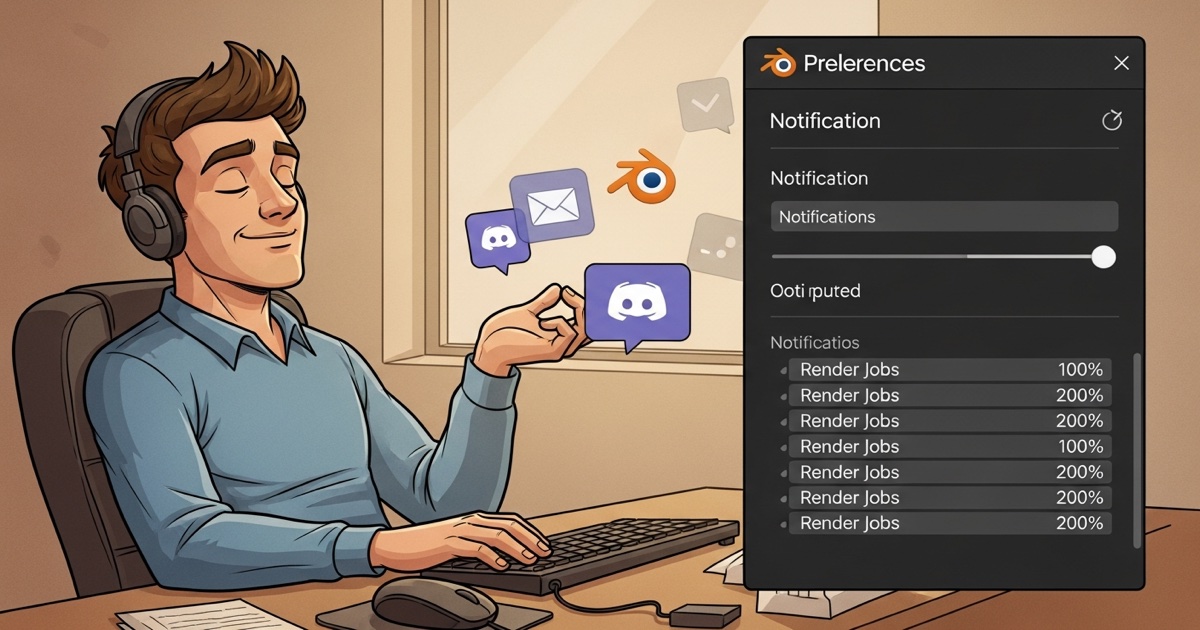
When you register an AddonPreferences class, Blender adds a panel for it under Edit > Preferences > Add-ons, right below the enable/disable toggle for your add-on. It uses the same bpy.props system as everything else, and it persists in Blender’s user preferences file — so the settings survive Blender restarts and are shared across all .blend files.
The class has one required attribute: bl_idname. It must exactly match your add-on’s module name — the name of the folder your package lives in. For us, that’s "batch_render_manager".
Here’s a minimal example before we build the real thing:
class BatchRenderManagerPreferences(bpy.types.AddonPreferences):
    bl_idname = "batch_render_manager"

    some_setting: bpy.props.StringProperty(name="Some Setting", default="")

    def draw(self, context):
        layout = self.layout
layout.prop(self, "some_setting")To access preferences from anywhere in the add-on:
prefs = context.preferences.addons["batch_render_manager"].preferences
print(prefs.some_setting)That "batch_render_manager" key is your module name again. It’s a string lookup in Blender’s addon registry, so it has to match exactly.
What Settings Do We Need?
For the Batch Render Manager, we need preferences for two notification channels:
Email (SMTP) — needs a server address, port, sender address, password, and recipient address. These are the standard fields for sending email programmatically.
Discord webhooks — needs a webhook URL. Discord’s webhook system is simple: you POST a JSON payload to the URL and a message appears in a channel. No OAuth, no API key, just the URL.
We also need a few behavior settings:
- Notify on queue complete — send a notification when the entire queue finishes
- Notify on job failure — send a notification when an individual job fails (useful for overnight runs — you want to know early if something breaks)
Building preferences.py
# preferences.py

import bpy

class BatchRenderManagerPreferences(bpy.types.AddonPreferences):
    """User preferences for the Batch Render Manager."""
    bl_idname = "batch_render_manager"

    # --- Notification Toggles ---
    notify_on_complete: bpy.props.BoolProperty(
        name="Notify on Queue Complete",
        description="Send a notification when the full queue finishes",
        default=True,
    )

    notify_on_failure: bpy.props.BoolProperty(
        name="Notify on Job Failure",
        description="Send a notification when an individual job fails",
        default=True,
    )

    # --- Email (SMTP) ---
    email_notifications: bpy.props.BoolProperty(
        name="Email Notifications",
        description="Send email notifications via SMTP",
        default=False,
    )

    smtp_host: bpy.props.StringProperty(
        name="SMTP Host",
        description="SMTP server hostname (e.g. smtp.gmail.com)",
        default="",
    )

    smtp_port: bpy.props.IntProperty(
        name="SMTP Port",
        description="SMTP server port (typically 587 for TLS, 465 for SSL)",
        default=587,
        min=1,
        max=65535,
    )

    smtp_user: bpy.props.StringProperty(
        name="Sender Email",
        description="The email address used to send notifications",
        default="",
    )

    smtp_password: bpy.props.StringProperty(
        name="SMTP Password",
        description="Password or app-specific password for the sender account",
        default="",
        subtype='PASSWORD',
    )

    smtp_recipient: bpy.props.StringProperty(
        name="Recipient Email",
        description="Email address to send notifications to",
        default="",
    )

    # --- Discord Webhook ---
    discord_notifications: bpy.props.BoolProperty(
        name="Discord Notifications",
        description="Post notifications to a Discord channel via webhook",
        default=False,
    )

    discord_webhook_url: bpy.props.StringProperty(
        name="Webhook URL",
        description="Discord webhook URL (from channel settings > Integrations)",
        default="",
    )

    def draw(self, context):
        layout = self.layout

        # --- Notification Triggers ---
        box = layout.box()
        box.label(text="When to Notify", icon='INFO')
        col = box.column()
        col.prop(self, "notify_on_complete")
        col.prop(self, "notify_on_failure")

        layout.separator()

        # --- Email ---
        box = layout.box()
        row = box.row()
        row.prop(self, "email_notifications")
        if self.email_notifications:
            col = box.column()
            col.prop(self, "smtp_host")
            col.prop(self, "smtp_port")
            col.prop(self, "smtp_user")
            col.prop(self, "smtp_password")
            col.prop(self, "smtp_recipient")

        layout.separator()

        # --- Discord ---
        box = layout.box()
        row = box.row()
        row.prop(self, "discord_notifications")
        if self.discord_notifications:
            box.prop(self, "discord_webhook_url")

classes = [
    BatchRenderManagerPreferences,
]

def register():
    for cls in classes:
        bpy.utils.register_class(cls)

def unregister():
    for cls in reversed(classes):
bpy.utils.unregister_class(cls)A few things worth calling out.
subtype='PASSWORD' on smtp_password replaces the text field display with dots, like a standard password input. The actual string is stored in plaintext in Blender’s preferences file — we’re not encrypting it. For a personal-use tool on your own machine this is acceptable. If you plan to distribute the addon, consider using the keyring library instead, which stores credentials in the OS keychain (macOS Keychain, Windows Credential Manager, Linux Secret Service) rather than a plain text file. It would need to be installed into Blender’s Python via subprocess.run([sys.executable, "-m", "pip", "install", "keyring"]) from the Scripting workspace. Worth knowing: Blender has no access control on addon preferences — any other addon can read yours at runtime via bpy.context.preferences.addons["your_bl_idname"].preferences, so the plaintext exposure isn’t limited to the prefs file on disk. For our purposes here, plaintext is fine.
Conditional display — the if self.email_notifications: blocks only show the email fields when email is enabled. There’s no point cluttering the preferences panel with SMTP fields if email is off. Same for Discord’s webhook URL. This is the same sub.enabled pattern from Post 5, but at the panel section level rather than the field level.
Queue Persistence with JSON
Right now, the queue lives in bpy.types.Scene and is saved with the .blend file. That’s fine for per-file queues, but it means if you close Blender without saving — or if Blender crashes — the queue is gone.
For a batch render manager, it’s useful to have the queue survive restarts independently of the .blend file. The right place for this kind of data is Blender’s user config directory:
import bpy
import os

config_dir = bpy.utils.user_resource('CONFIG', path="batch_render_manager", create=True)
queue_path = os.path.join(config_dir, "queue.json")bpy.utils.user_resource('CONFIG', ...) returns the platform-appropriate config directory:
- Windows:
%APPDATA%\Blender Foundation\Blender\4.x\config\batch_render_manager\ - macOS:
~/Library/Application Support/Blender/4.x/config/batch_render_manager/ - Linux:
~/.config/blender/4.x/config/batch_render_manager/
The create=True argument creates the directory if it doesn’t exist. The return value is the full path to the directory.
We’ll add two functions to a new file, file_io.py: one to save the queue, one to load it.
file_io.py
# file_io.py
# Queue persistence: save and load queue state as JSON.

import bpy
import json
import os

def _get_queue_path():
    """Return the full path to the queue JSON file in the user config directory."""
    config_dir = bpy.utils.user_resource('CONFIG', path="batch_render_manager", create=True)
    return os.path.join(config_dir, "queue.json")

def save_queue():
    """
    Serialize the current queue to JSON and write it to the config directory.
    Called after any change that should be persisted (add, remove, status update).
    """
    jobs = bpy.context.scene.batch_render_jobs
    queue_data = []

    for job in jobs:
        queue_data.append({
            "name": job.name,
            "filepath": job.filepath,
            "enabled": job.enabled,
            "status": job.status,
            "override_resolution": job.override_resolution,
            "res_x": job.res_x,
            "res_y": job.res_y,
            "override_samples": job.override_samples,
            "samples": job.samples,
            "override_output": job.override_output,
            "output_path": job.output_path,
            "frame_start": job.frame_start,
            "frame_end": job.frame_end,
        })

    path = _get_queue_path()
    try:
        with open(path, 'w', encoding='utf-8') as f:
            json.dump(queue_data, f, indent=2)
    except OSError as e:
        print(f"[Batch Render] Could not save queue: {e}")

def load_queue():
    """
    Load queue data from the JSON file and populate the scene's collection.
    Called on add-on load/enable (registered via a load_post handler in Post 9).
    Skips gracefully if no saved queue exists.
    """
    path = _get_queue_path()
    if not os.path.isfile(path):
        return

    try:
        with open(path, 'r', encoding='utf-8') as f:
            queue_data = json.load(f)
    except (OSError, json.JSONDecodeError) as e:
        print(f"[Batch Render] Could not load queue: {e}")
        return

    jobs = bpy.context.scene.batch_render_jobs
    jobs.clear()

    for entry in queue_data:
        job = jobs.add()
        job.name = entry.get("name", "Untitled Job")
        job.filepath = entry.get("filepath", "")
        job.enabled = entry.get("enabled", True)
        # Don't restore RUNNING status — if we're loading after a restart,
        # any job that was RUNNING didn't finish cleanly.
        raw_status = entry.get("status", "PENDING")
        job.status = raw_status if raw_status != 'RUNNING' else 'PENDING'
        job.override_resolution = entry.get("override_resolution", False)
        job.res_x = entry.get("res_x", 1920)
        job.res_y = entry.get("res_y", 1080)
        job.override_samples = entry.get("override_samples", False)
        job.samples = entry.get("samples", 128)
        job.override_output = entry.get("override_output", False)
        job.output_path = entry.get("output_path", "")
        job.frame_start = entry.get("frame_start", 1)
job.frame_end = entry.get("frame_end", 250)The RUNNING → PENDING reset in load_queue() is worth explaining. If Blender closed (or crashed) while a job was rendering, that job’s status was left as RUNNING. But the render process didn’t finish — it was killed with the main process. When we reload the queue, we reset any RUNNING jobs back to PENDING so they’ll be retried on the next queue run. This is a simple form of crash recovery; Post 9 will expand on it.
file_io.py doesn’t define any Blender classes, so it doesn’t need register()/unregister(). Like queue_runner.py, it just needs to be importable. It does need to be added to the import list in __init__.py:
from . import operators, panels, properties, preferences, file_ioWiring Save Calls Into Operators
We want the queue saved to disk any time it changes. The natural places to call save_queue() are the add_job and remove_job operators, plus queue_runner.run_queue() after each job’s status changes.
In operators.py, import file_io:
from . import queue_runner, file_ioThen add the call at the end of each execute() that modifies the queue:
# In BATCHRENDER_OT_add_job.execute():
def execute(self, context):
    jobs = context.scene.batch_render_jobs
    new_job = jobs.add()
    new_job.name = f"Job {len(jobs)}"
    new_job.status = 'PENDING'
    context.scene.batch_render_active_job_index = len(jobs) - 1
    file_io.save_queue()
    return {'FINISHED'}

# In BATCHRENDER_OT_remove_job.execute():
def execute(self, context):
    jobs = context.scene.batch_render_jobs
    index = context.scene.batch_render_active_job_index
    jobs.remove(index)
    context.scene.batch_render_active_job_index = max(0, min(index, len(jobs) - 1))
    file_io.save_queue()
return {'FINISHED'}In queue_runner.py, import file_io and call save_queue() after each status update. The status changes happen in two places: _launch_job() when a job starts, and _poll_render_timer() when it finishes.
from . import file_io

# ...in _launch_job(), after setting the job status:
job.status = 'RUNNING'
file_io.save_queue()

# ...in _poll_render_timer(), after each status change:
job.status = 'DONE'
file_io.save_queue()

# ...or on failure:
job.status = 'FAILED'
file_io.save_queue()
We’ll hook load_queue() into Blender’s startup sequence in Post 9 using a load_post handler — a callback that Blender fires after a file is loaded. That’s also where we’ll handle queue resume. For now, we have the persistence machinery ready; we just need the trigger.
Notifications
With preferences in place, we can build notifications.py. The design is simple: one dispatch function that checks the preferences and fires whichever channels are enabled.
notifications.py
# notifications.py
# Notification dispatch for email and Discord.

import bpy
import json
import smtplib
import ssl
import urllib.request
import urllib.error

def _get_prefs():
    """Return the add-on preferences object."""
    return bpy.context.preferences.addons["batch_render_manager"].preferences

def notify(title, message):
    """
    Dispatch a notification through all enabled channels.
    Checks preferences to determine which channels are active.
    """
    prefs = _get_prefs()

    if prefs.email_notifications:
        _notify_email(title, message, prefs)

    if prefs.discord_notifications:
_notify_discord(title, message, prefs)Let’s walk through each channel.
Desktop Notifications
The first notification channel most people think of is desktop notifications — a pop-up on the machine you’re sitting at. It’s the most direct feedback possible. The challenge is that each OS handles desktop notifications differently, and Python libraries that abstract over those differences (like plyer) have their own platform-specific dependencies that make them tricky to install reliably inside Blender’s bundled Python environment.
Email and Discord are simpler here because they go over the network using standard protocols — no OS integration required. Desktop notifications are absolutely worth adding if you spend most of your time at the machine running renders. plyer is the right starting point: it wraps macOS Notification Center, Windows toast notifications, and Linux libnotify behind a single API. The plyer documentation covers installation and usage, and the notify() function in notifications.py is already structured to accept a desktop channel alongside email and Discord.
Email via SMTP
smtplib is part of Python’s standard library — no external dependencies needed. Port 587 is the standard submission port for mail clients, and STARTTLS is how that port upgrades from a plain connection to an encrypted one — the client connects, issues a STARTTLS command, and then negotiates TLS before sending credentials. Most email providers, including Gmail, expect this for programmatic sending. ssl.create_default_context() handles certificate verification as part of that handshake.
For Gmail specifically: Google disabled “less secure app” login in 2022. To send email from a script, you’ll need to create an App Password (under your Google account security settings, with 2-factor authentication enabled). The App Password goes in the smtp_password field, not your main account password.
A few things about our implementation:
timeout=10 — we pass a timeout to both the SMTP connection and the network call. Without this, a broken SMTP server or bad network connection could block the post-queue notification indefinitely. Ten seconds is generous for a simple email handshake.
Specific exception handling — we catch SMTPAuthenticationError separately from the generic SMTPException because it deserves a different message. “Authentication error” tells the user exactly what’s wrong; a generic “SMTP error” leaves them guessing.
Plaintext password storage — the smtp_password is stored in Blender’s preferences file in plaintext. This is worth noting in the Preferences draw method. Add a note to the draw function when the email settings are expanded:
if self.email_notifications:
col = box.column()
# ... (field props) ...
box.label(
text="Password is stored in plaintext in Blender preferences.",
icon='ERROR',
)Discord Webhooks
Discord webhooks are the simpler of the two implemented channels. You create a webhook in Discord’s channel settings (Settings > Integrations > Webhooks), copy the URL, and paste it into our preferences field. After that, a POST request with a JSON body is all it takes to send a message.
We’re using Python’s built-in urllib.request instead of the popular requests library. urllib.request is in the standard library, so there’s nothing to install. The tradeoff is slightly more verbose code — but for a single POST request, it’s fine.
The Discord payload format is just {"content": "your message here"}. You can use Discord’s markdown syntax in the content string — **bold**, *italic*, code blocks with backticks, and so on. We use **{title}** to bold the title line, which makes the notification easier to scan in a busy channel.
We also include a User-Agent header in the format Discord’s API requires for bot clients. The exact format is specified in the Discord developer documentation.
Wiring Notifications Into the Queue Runner
Open queue_runner.py and add the import at the top:
from . import file_io, notificationsThe notification calls go in three places. The first is _poll_render_timer(), where job status changes happen — add a failure notification after each job.status = 'FAILED' assignment:
if returncode == 0:
job.status = 'DONE'
print(f"[Batch Render] Done: {job.name}")
else:
job.status = 'FAILED'
_, stderr = _active_process.communicate()
print(f"[Batch Render] FAILED: {job.name}")
if stderr:
print(stderr.decode(errors='replace'))
prefs = bpy.context.preferences.addons["batch_render_manager"].preferences
if prefs.notify_on_failure:
notifications.notify(
"Render Job Failed",
f"'{job.name}' failed during rendering.\nCheck the console for details.",
)The second is start_queue() and the file-not-found check inside _poll_render_timer(), where a job is skipped because its .blend file is missing:
if not os.path.isfile(next_job.filepath):
next_job.status = 'FAILED'
print(f"[Batch Render] ERROR: File not found: {next_job.filepath}")
prefs = bpy.context.preferences.addons["batch_render_manager"].preferences
if prefs.notify_on_failure:
notifications.notify(
"Render Job Failed",
f"'{next_job.name}' could not start: file not found.\n{next_job.filepath}",
)The third is _finish_queue(), where we send the queue completion summary. We count DONE and FAILED jobs directly from the scene:
def _finish_queue(scene):
global _active_process, _active_job_index
_active_process = None
_active_job_index = None
scene.batch_render_is_running = False
prefs = bpy.context.preferences.addons["batch_render_manager"].preferences
if prefs.notify_on_complete:
jobs = scene.batch_render_jobs
failed = [j.name for j in jobs if j.enabled and j.status == 'FAILED']
done_count = sum(1 for j in jobs if j.enabled and j.status == 'DONE')
if not failed:
notifications.notify(
"Render Queue Complete",
f"All {done_count} job(s) finished successfully.",
)
else:
notifications.notify(
"Render Queue Complete",
f"{done_count} job(s) done, {len(failed)} failed: {', '.join(failed)}",
)
print("[Batch Render] Queue complete.")The completion summary counts directly from job statuses rather than tracking failures in a separate list — since _finish_queue is called after all jobs have settled, the scene’s job list is the source of truth. A vague “queue finished” notification that doesn’t mention failures is worse than no notification at all, so the summary always includes the breakdown.
The Complete notifications.py
# notifications.py
# Notification dispatch for email and Discord.

import bpy
import json
import smtplib
import ssl
import urllib.request
import urllib.error

def _get_prefs():
    """Return the add-on preferences object."""
    return bpy.context.preferences.addons["batch_render_manager"].preferences

def notify(title, message):
    """
    Dispatch a notification through all enabled channels.
    Checks preferences to determine which channels are active.
    """
    prefs = _get_prefs()

    if prefs.email_notifications:
        _notify_email(title, message, prefs)

    if prefs.discord_notifications:
        _notify_discord(title, message, prefs)
def _notify_email(title, message, prefs):
"""
Send an email notification via SMTP with STARTTLS.
Credentials are read from AddonPreferences.
"""
if not prefs.smtp_host or not prefs.smtp_user or not prefs.smtp_recipient:
print("[Batch Render] Email notification skipped: incomplete SMTP settings.")
return
subject = f"[Batch Render] {title}"
body = f"Subject: {subject}\r\nFrom: {prefs.smtp_user}\r\nTo: {prefs.smtp_recipient}\r\n\r\n{message}"
try:
context = ssl.create_default_context()
with smtplib.SMTP(prefs.smtp_host, prefs.smtp_port, timeout=10) as server:
server.starttls(context=context)
server.login(prefs.smtp_user, prefs.smtp_password)
server.sendmail(prefs.smtp_user, prefs.smtp_recipient, body)
print(f"[Batch Render] Email sent to {prefs.smtp_recipient}")
except smtplib.SMTPAuthenticationError:
print("[Batch Render] Email failed: authentication error. Check your credentials.")
except smtplib.SMTPException as e:
print(f"[Batch Render] Email failed: {e}")
except OSError as e:
print(f"[Batch Render] Email failed (network error): {e}")
def _notify_discord(title, message, prefs):
"""
Post a message to a Discord channel via webhook.
The webhook URL is set in AddonPreferences.
"""
if not prefs.discord_webhook_url:
print("[Batch Render] Discord notification skipped: no webhook URL set.")
return
payload = json.dumps({
"content": f"**{title}**\n{message}"
}).encode('utf-8')
req = urllib.request.Request(
prefs.discord_webhook_url,
data=payload,
headers={
"Content-Type": "application/json",
"User-Agent": "DiscordBot (blender_batch_render, 1.0)",
},
method="POST",
)
try:
with urllib.request.urlopen(req, timeout=10) as response:
if response.status not in (200, 204):
print(f"[Batch Render] Discord webhook returned status {response.status}")
else:
print("[Batch Render] Discord notification sent.")
except urllib.error.URLError as e:
print(f"[Batch Render] Discord notification failed: {e}")
except Exception as e:
print(f"[Batch Render] Discord notification failed: {e}")Updating __init__.py
Add file_io and notifications to the import list and make sure they’re imported (they don’t need register()/unregister() calls since they have no Blender classes):
from . import operators, panels, properties, preferences, file_io, notifications

def register():
    properties.register()
    operators.register()
    panels.register()
    preferences.register()

def unregister():
    preferences.unregister()
    panels.unregister()
    operators.unregister()
properties.unregister()Testing It
Preferences
Reload the add-on. Go to Edit > Preferences > Add-ons, find Batch Render Manager, and expand it. You should see the preferences panel with the notification toggles, and collapsible sections for Email and Discord. Enable Discord and paste in a real webhook URL if you want to test it end-to-end.
Queue Persistence
Add a couple of jobs to the queue. Check the config directory for your platform — you should find queue.json there, updated with your jobs. Close and reopen Blender. The JSON file will be there, but the queue in the panel will be empty — because we haven’t wired up load_queue() to fire on startup yet. That’s the Post 9 task.
For now, you can verify the round-trip manually from the Python console:
import bpy
from batch_render_manager import file_io

# Save current queue
file_io.save_queue()

# Clear the queue and reload from disk
bpy.context.scene.batch_render_jobs.clear()
file_io.load_queue()

# Verify
for job in bpy.context.scene.batch_render_jobs:
print(job.name, job.status, job.filepath)Discord Notification
You can test notification dispatch from the Python console without running a full queue:
from batch_render_manager import notifications
notifications.notify("Test Notification", "If you see this in Discord, it's working.")If Discord notifications are enabled in preferences and the webhook URL is valid, you should see the message in your Discord channel within a second or two.
What We Have Now
After eight posts, here’s where the add-on stands:
AddonPreferenceswith toggleable notification channels — email and Discord — and all the credentials to go with them- Queue state persisted to JSON in the user config directory, updated on every queue change
- Notification dispatch wired into the queue runner, with per-job failure alerts and a completion summary
- All three notification channels handling errors gracefully without crashing the add-on
- Feature 3 (completion notifications) fully implemented
The two remaining gaps are load_queue() not being called on startup (queue doesn’t auto-restore yet), and the various error handling and packaging work that comes in Post 9.
What’s Coming Next
In Post 9, we’ll wrap up Feature 4: error handling and recovery. That means hooking load_queue() into Blender’s load_post handler so the queue restores on startup, adding a pre-flight validation sweep before the queue starts, building an error log that captures render output for failed jobs, and converting the add-on to the Extensions format with blender_manifest.toml. We’ll also add the filepath empty-state alert to the Job Overrides panel — a small UI detail deferred from earlier that’s worth doing properly.
Almost there. See you in Post 9.
Have questions or ran into a snag? Drop a comment below. And if you want work-in-progress updates, upcoming tutorials, and early looks at what I’m building, subscribe to the newsletter.