Post 4 of 10 — Blender Add-on Development with Python
In this series: We’re building a Batch Render Manager add-on from scratch. Post 1 set up the basics with a Hello World add-on. Post 2 converted it into a proper Python package. Post 3 built out the five core operators. This post gives those operators a home — we’re building the panel UI.
In the last post, we built out five operators that cover the core actions of the Batch Render Manager. They work — you can call them from the Python console and see them respond. But the add-on still has no UI. There’s nothing to click in Blender’s interface, no panel to open, no list to look at.
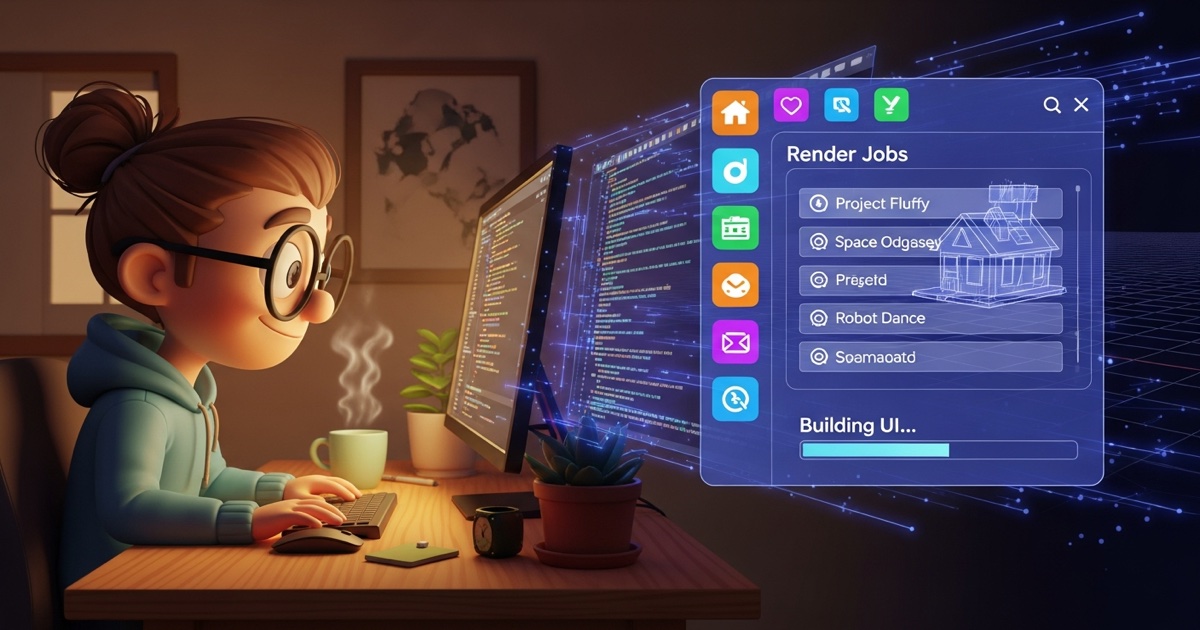
That changes today. We’re going to build panels.py and give our add-on a real home in Blender’s interface. By the end of this post, you’ll have:
- A queue list panel in the 3D viewport’s N-panel (the sidebar)
- Toolbar buttons wired to our operators
- A progress bar that shows render status
- A per-item sub-panel stubbed out for the override settings we’ll add in Post 5
The add-on still won’t be fully functional — the queue data model doesn’t exist yet — but for the first time it’s going to look like something real.
A Quick Detour: Where Should This Panel Live?
Blender has a lot of places a panel can live: the Properties editor, the N-panel sidebar in the 3D viewport, the Tool shelf, the header, a pop-up, and more. The right choice depends on what your add-on does and how users will interact with it.
For the Batch Render Manager, we want something that stays visible while you’re setting up a queue — you’re adding jobs, tweaking settings, and then kicking off a render. That workflow lends itself to the N-panel sidebar in the 3D viewport. It’s always accessible with a quick N press, it stays open while you work, and it’s where a lot of third-party add-ons live.
The Properties editor under Render would be another reasonable home (and more thematically appropriate for a render tool), but the N-panel is easier to work with during development because it’s always visible. We can always relocate it later.
How Panels Work
A panel is a class that inherits from bpy.types.Panel. You’ve seen this before — the Hello World from Post 1 used one. But let’s be precise about what the class attributes actually control:
class BATCHRENDER_PT_queue(bpy.types.Panel):
    bl_label = "Batch Render Queue"
    bl_idname = "BATCHRENDER_PT_queue"
    bl_space_type = 'VIEW_3D'
    bl_region_type = 'UI'
bl_category = "Batch Render"bl_label— the text shown in the panel header. This is what the user sees.bl_idname— a unique identifier for this panel. By convention it matches the class name.bl_space_type— which editor this panel lives in.'VIEW_3D'is the 3D viewport. Others include'PROPERTIES','NODE_EDITOR','IMAGE_EDITOR', etc.bl_region_type— which region within that editor.'UI'is the N-panel sidebar.'TOOLS'is the T-panel on the left.'HEADER'puts things in the editor header.bl_category— for N-panel panels, this sets the tab name. All panels with the samebl_categoryappear together under one tab.
The draw(self, context) method is where you build the UI. It runs every time Blender redraws the panel — which is frequent. Keep it fast: no file I/O, no heavy computation. Just read from context and properties, and lay out UI elements.
The layout Object
Inside draw(), self.layout is your canvas. It’s a UILayout object, and it has a rich API for arranging UI elements. The most common things you’ll use:
layout.operator("some.idname")— draws a button that runs an operatorlayout.prop(data, "property_name")— draws a field for editing a propertylayout.label(text="Some Text")— draws plain textlayout.separator()— adds a bit of vertical spacelayout.row()— creates a horizontal row containerlayout.column()— creates a vertical column containerlayout.box()— creates a bordered box, useful for grouping related things
Rows and columns can themselves contain rows, columns, and any other layout elements. You can nest them to create more complex arrangements:
row = layout.row()
row.operator("batch_render.start_queue")
row.operator("batch_render.stop_queue")That would put Start Queue and Stop Queue side by side in the same row.
You can also control whether UI elements are enabled with layout.enabled:
row = layout.row()
row.enabled = not is_running  # gray out if queue is running
row.operator("batch_render.add_job")We’ll use this when we wire up real queue state in Post 5.
UIList: Blender’s Scrollable List Widget
The centerpiece of our panel is a scrollable list of render jobs. Blender provides a dedicated class for this: bpy.types.UIList.
A UIList is a separate class from your panel. It defines how each row in the list is drawn — one row per item in your collection. The panel is responsible for calling layout.template_list(...) to embed it.
Here’s the minimal shape of a UIList class:
class BATCHRENDER_UL_queue(bpy.types.UIList):
    def draw_item(self, context, layout, data, item, icon, active_data, active_propname):
        if self.layout_type in {'DEFAULT', 'COMPACT'}:
            layout.label(text=item.name, icon='RENDER_STILL')
        elif self.layout_type == 'GRID':
            layout.alignment = 'CENTER'
layout.label(text="", icon='RENDER_STILL')The draw_item() method is called once per item in the list. The parameters you’ll use most often are:
layout— the layout for this row; draw your UI elements hereitem— the actual data item for this row (one of your PropertyGroup instances)active_data— the object that holds the active index propertyactive_propname— the name of the active index property as a string
We’re using item.name here — that’s a field we’ll define on our RenderJobItem PropertyGroup in Post 5. For now it just needs to reference something that exists conceptually.
The layout_type check is a convention you’ll see in most UIList implementations. Blender has three list display modes: DEFAULT (normal), COMPACT (smaller rows), and GRID (icon grid). Supporting DEFAULT and COMPACT is usually enough.
To embed the list in a panel, you call layout.template_list():
layout.template_list(
    "BATCHRENDER_UL_queue",   # the UIList class name
    "",                        # a unique list ID (can be empty string)
    context.scene,             # the object that owns the collection
    "batch_render_jobs",       # the name of the collection property
    context.scene,             # the object that owns the active index
    "batch_render_active_job_index",  # the name of the active index property
    rows=4,                    # how many rows to show before scrolling
)Those context.scene references — and the property names "batch_render_jobs" and "batch_render_active_job_index" — are placeholders. We’ll define the actual properties in Post 5. For now, they serve as a clear placeholder for what’s coming.
Building the Panel
Let’s put it all together. Open panels.py and build it out section by section.
The UIList
import bpy

class BATCHRENDER_UL_queue(bpy.types.UIList):
    """Draws each render job as a row in the queue list."""

    def draw_item(self, context, layout, data, item, icon, active_data, active_propname):
        if self.layout_type in {'DEFAULT', 'COMPACT'}:
            # Left side: status icon and job name
            row = layout.row(align=True)
            row.label(text=item.name if hasattr(item, 'name') else "Job", icon='RENDER_STILL')
        elif self.layout_type == 'GRID':
            layout.alignment = 'CENTER'
layout.label(text="", icon='RENDER_STILL')That hasattr(item, 'name') guard is a defensive measure for while we’re working without real queue data. Once the PropertyGroup is in place in Post 5, item.name will always exist.
The Main Queue Panel
class BATCHRENDER_PT_queue(bpy.types.Panel):
    """Main panel for the Batch Render Manager queue."""
    bl_label = "Batch Render Queue"
    bl_idname = "BATCHRENDER_PT_queue"
    bl_space_type = 'VIEW_3D'
    bl_region_type = 'UI'
    bl_category = "Batch Render"

    def draw(self, context):
        layout = self.layout
        scene = context.scene

        # --- Queue List ---
        # template_list will be wired to real data in Post 5.
        # For now, draw the toolbar buttons so we can see the layout.
        layout.label(text="Render Queue:", icon='SEQUENCE')

        # Placeholder for the UIList — we'll connect it to real data in Post 5.
        # layout.template_list(
        #     "BATCHRENDER_UL_queue", "",
        #     scene, "batch_render_jobs",
        #     scene, "batch_render_active_job_index",
        #     rows=4,
        # )

        # --- Toolbar Buttons ---
        row = layout.row(align=True)
        row.operator("batch_render.add_job", text="", icon='ADD')
        row.operator("batch_render.remove_job", text="", icon='REMOVE')

        layout.separator()

        # --- Start / Stop ---
        row = layout.row(align=True)
        row.scale_y = 1.4
        row.operator("batch_render.start_queue", icon='PLAY')
        row.operator("batch_render.stop_queue", icon='SNAP_FACE')

        layout.separator()

        # --- Progress ---
        self._draw_progress(layout, context)

    def _draw_progress(self, layout, context):
        """Draws the progress bar and status text."""
        # We'll pull real progress values from queue state in Post 7.
        # For now, draw a static placeholder.
        col = layout.column(align=True)
        col.label(text="Status: Idle", icon='INFO')

        # progress() draws a progress bar. Values are 0.0–1.0.
        # We'll hook this to real data later.
col.progress(factor=0.0, text="No active render")A few things to point out here.
align=True on a row or column removes the spacing between elements, making them feel like a single grouped control. It’s the difference between two buttons that look related and two buttons that look like they just happen to be next to each other. Use it for toolbars and button groups.
scale_y = 1.4 on the Start/Stop row makes those buttons taller. For primary action buttons, a little extra height makes them feel more prominent and easier to click.
layout.progress() is a relatively recent addition to the Blender layout API (4.0+). It draws a native progress bar widget. The factor argument is a float from 0.0 to 1.0, and text is the label overlaid on the bar. In Post 7, when we build the modal operator that actually runs renders, we’ll feed this real values.
_draw_progress() is a helper method — just a regular Python method on the panel class, prefixed with _ to signal it’s internal. Breaking complex draw() methods into smaller helpers is good practice. It makes the code easier to read and easier to modify without unintentionally breaking something else.
Note that the template_list() call is commented out. That’s intentional — it requires the PropertyGroup data to exist before it can run without errors. We’ll uncomment it in Post 5.
The Override Sub-Panel
In Post 5, each queue item will have settings like resolution, samples, and output path that can be overridden per-job. Those settings belong in a sub-panel — a panel that’s parented to the main queue panel and appears below it.
Blender supports this with the bl_parent_id attribute:
class BATCHRENDER_PT_job_overrides(bpy.types.Panel):
    """Per-job render setting overrides. Shown below the main queue panel."""
    bl_label = "Job Overrides"
    bl_idname = "BATCHRENDER_PT_job_overrides"
    bl_space_type = 'VIEW_3D'
    bl_region_type = 'UI'
    bl_category = "Batch Render"
    bl_parent_id = "BATCHRENDER_PT_queue"
    bl_options = {'DEFAULT_CLOSED'}

    def draw(self, context):
        layout = self.layout
layout.label(text="Override settings coming in Post 5.")bl_parent_id is set to the bl_idname of the parent panel. Blender will indent this panel and display it as a collapsible child of the main queue panel.
bl_options = {'DEFAULT_CLOSED'} means the panel starts collapsed. You can open it by clicking the arrow. This is a good default for sub-panels that contain detailed settings — they don’t need to be open all the time, and keeping them closed by default reduces visual clutter.
Registration
classes = [
    BATCHRENDER_UL_queue,
    BATCHRENDER_PT_queue,
    BATCHRENDER_PT_job_overrides,
]

def register():
    for cls in classes:
        bpy.utils.register_class(cls)

def unregister():
    for cls in reversed(classes):
bpy.utils.unregister_class(cls)One subtlety worth calling out: BATCHRENDER_UL_queue goes in classes just like any other Blender type. UIList classes need to be registered the same way operators and panels do.
The Complete panels.py
Here’s the full file:
import bpy
class BATCHRENDER_UL_queue(bpy.types.UIList):
"""Draws each render job as a row in the queue list."""
def draw_item(self, context, layout, data, item, icon, active_data, active_propname):
if self.layout_type in {'DEFAULT', 'COMPACT'}:
row = layout.row(align=True)
row.label(text=item.name if hasattr(item, 'name') else "Job", icon='RENDER_STILL')
elif self.layout_type == 'GRID':
layout.alignment = 'CENTER'
layout.label(text="", icon='RENDER_STILL')
class BATCHRENDER_PT_queue(bpy.types.Panel):
"""Main panel for the Batch Render Manager queue."""
bl_label = "Batch Render Queue"
bl_idname = "BATCHRENDER_PT_queue"
bl_space_type = 'VIEW_3D'
bl_region_type = 'UI'
bl_category = "Batch Render"
def draw(self, context):
layout = self.layout
scene = context.scene
layout.label(text="Render Queue:", icon='SEQUENCE')
# template_list will be wired to real data in Post 5.
# layout.template_list(
# "BATCHRENDER_UL_queue", "",
# scene, "batch_render_jobs",
# scene, "batch_render_active_job_index",
# rows=4,
# )
row = layout.row(align=True)
row.operator("batch_render.add_job", text="", icon='ADD')
row.operator("batch_render.remove_job", text="", icon='REMOVE')
layout.separator()
row = layout.row(align=True)
row.scale_y = 1.4
row.operator("batch_render.start_queue", icon='PLAY')
row.operator("batch_render.stop_queue", icon='SNAP_FACE')
layout.separator()
self._draw_progress(layout, context)
def _draw_progress(self, layout, context):
col = layout.column(align=True)
col.label(text="Status: Idle", icon='INFO')
col.progress(factor=0.0, text="No active render")
class BATCHRENDER_PT_job_overrides(bpy.types.Panel):
"""Per-job render setting overrides."""
bl_label = "Job Overrides"
bl_idname = "BATCHRENDER_PT_job_overrides"
bl_space_type = 'VIEW_3D'
bl_region_type = 'UI'
bl_category = "Batch Render"
bl_parent_id = "BATCHRENDER_PT_queue"
bl_options = {'DEFAULT_CLOSED'}
def draw(self, context):
layout = self.layout
layout.label(text="Override settings coming in Post 5.")
classes = [
    BATCHRENDER_UL_queue,
    BATCHRENDER_PT_queue,
    BATCHRENDER_PT_job_overrides,
]

def register():
    for cls in classes:
        bpy.utils.register_class(cls)

def unregister():
    for cls in reversed(classes):
bpy.utils.unregister_class(cls)A Note on Icons
You’ll notice we’re using Blender icon names like 'ADD', 'REMOVE', 'PLAY', and 'SEQUENCE'. These are strings that map to Blender’s internal icon set, which has hundreds of options.
The easiest way to browse them is the Icon Viewer add-on that ships with Blender. Enable it in Preferences under Add-ons (search “Icon Viewer”), then open it from Text Editor > Templates > Icon Viewer. Click any icon to copy its name to your clipboard.
A few you’ll use constantly:
| Icon Name | What It Looks Like |
|---|---|
'ADD' | Plus sign |
'REMOVE' | Minus sign |
'PLAY' | Triangle / play button |
'CANCEL' | X circle |
'RENDER_STILL' | Camera |
'ERROR' | Triangle warning |
'INFO' | Circle i |
'SEQUENCE' | Film strip |
You can also pass icon='NONE' or just omit the icon argument entirely if you don’t want one.
Testing It
Reload the add-on. Press N in the 3D viewport to open the sidebar and look for the Batch Render tab. You should see:
- A “Render Queue:” label
- Two small icon buttons (+ and −) for add/remove
- Two larger buttons for Start Queue and Stop Queue
- A “Status: Idle” label and a flat progress bar
- A collapsed “Job Overrides” sub-panel below
Click the Add Job button — you should see “Job added to queue” flash in the Info bar at the top of the screen. Same for Remove Job, Start Queue, and Stop Queue (Stop Queue will show a confirmation dialog first, because of the invoke_confirm() we added in Post 3).
The panel is drawing from our operators without knowing anything about the queue data yet. That’s exactly where we want to be.
What We Have Now
Let’s take stock:
- A
UIListclass ready to render queue items as rows - A main queue panel with Add/Remove buttons, Start/Stop buttons, and a progress bar
- A child sub-panel for per-job overrides, collapsed by default
- Everything registered and visible in the sidebar
The panel is doing its job: presenting the interface. The operators are behind the buttons. The only missing piece is the data they act on — and that’s exactly what Post 5 is about.
What’s Coming Next
In Post 5, we’ll build out properties.py and define the actual data model for the render queue. We’ll use bpy.props to define fields like job name, file path, status, and per-job override settings. We’ll register a PropertyGroup and attach it to bpy.types.Scene so the queue persists with the Blender file.
Once that’s in place, we can uncomment the template_list() call, update the poll() methods in our operators, and finally have a queue that actually stores and displays real jobs.
See you there.
Have questions or ran into a snag? Drop a comment below. And if you want work-in-progress updates, upcoming tutorials, and early looks at what I’m building, subscribe to the newsletter.